
Target size
Compress video for email limits
A repeatable target-size workflow for sending smaller video attachments without making faces, screen text, or audio useless.
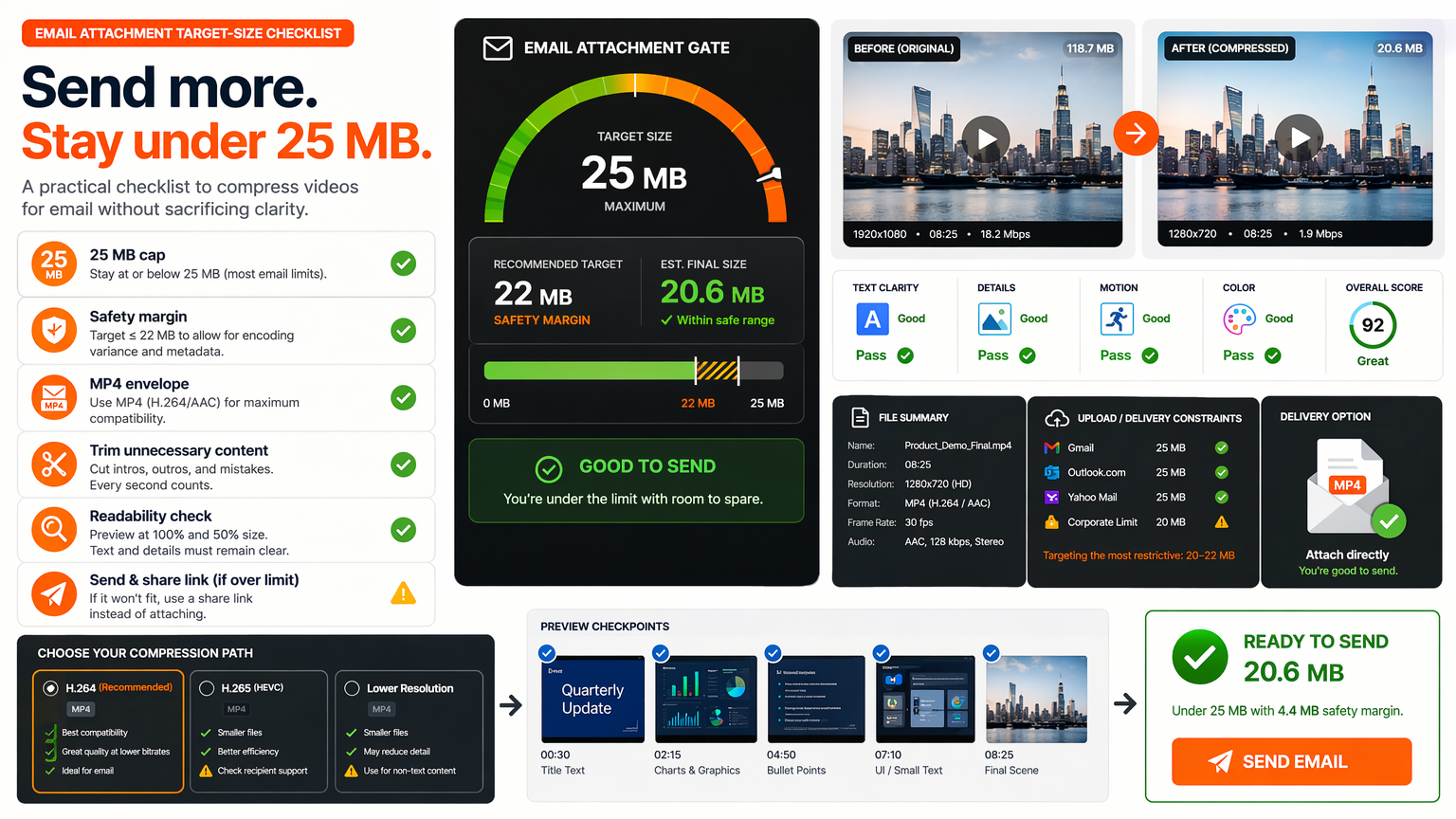
Email is the delivery channel where compression is judged most harshly, because the test is not how small the file is but whether a specific recipient can actually open and understand it. A dramatic size reduction means nothing if the attachment bounces, or arrives so crushed that the on-screen demo is unreadable. The goal is a file that arrives, plays, and communicates, in that order.
This is a target-size workflow, not a maximum-compression workflow. You pick a size below the provider's cap with a safety margin, choose the format most likely to play in an inbox, protect the detail the recipient needs to see, and trim before you crush. Where the target would ruin the message, the right answer is a hosted link, not a smaller file. Every step here serves one question: will this open for them?
Section 1Set a target below the stated cap
Email providers advertise attachment limits, commonly around 25 megabytes, but that number is not the whole story. Attachments are base64-encoded for transport, which inflates binary files by roughly a third, and providers measure the encoded size, not the file on disk. A 24-megabyte video can become a 32-megabyte attachment and bounce under a 25-megabyte cap.
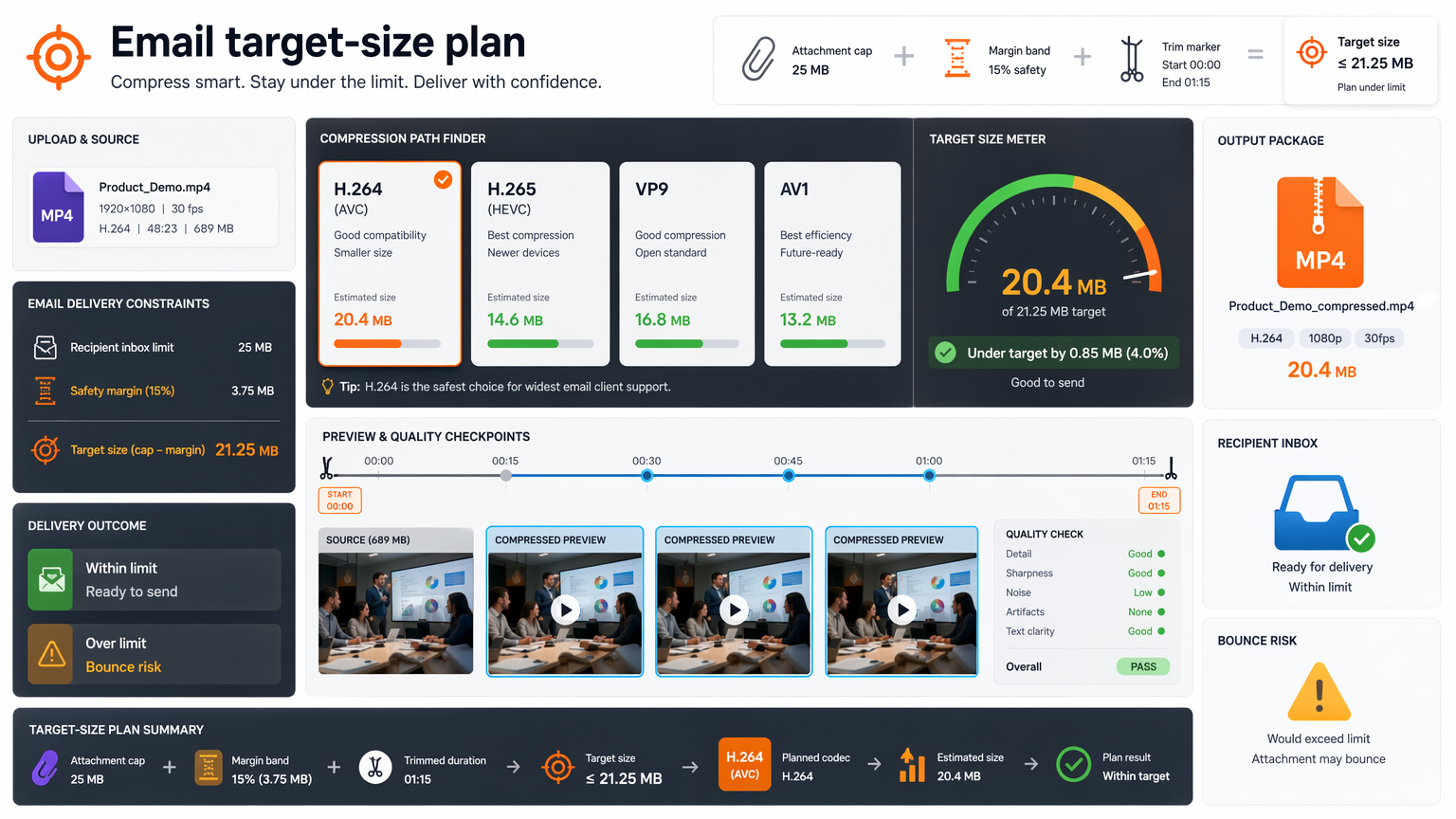
The safe practice is to aim below the headline number, not at it. Targeting around 20 megabytes leaves room for the encoding inflation, the message body, and the differences between providers and recipients' mail servers. Hitting the exact limit is how you get files that send for you and bounce for them.
Different providers and plans also enforce different limits, and corporate gateways often impose their own. A file that fits Gmail may not fit a recipient's Outlook or a company's scanner. A target with margin is robust against all of that; a target tuned to one provider's published number is fragile the moment the recipient is somewhere else.
Work the maths backwards: to land a 25-megabyte transport limit after base64 inflation, your actual video file should sit around 18 to 19 megabytes. Aim there, not at 24, and the attachment sails through instead of bouncing with a cryptic "message too large" error that neither you nor the recipient can easily debug.
Section 2Decide whether attachment is the right delivery method
Before compressing, ask whether attachment is even the right tool. For a quick, small clip to a colleague, an attachment is convenient. For anything sizeable, important, or going to a client, a hosted link is often the better choice: it does not bounce, it works on any device, it tracks whether it was opened, and it lets you replace or revoke the file later.
The attachment-or-link decision is really a decision about the recipient's experience. An attachment arrives in the inbox and works offline, but it bounces, fills mailboxes, and is hard to update once sent. A link is reliable and lightweight, but it depends on the recipient clicking through and on the host staying up. Neither is universally right.
A reasonable rule: if the target size would force you to visibly damage the video to fit, send a link instead. Crushing a file past the point of comprehension to make it attachable trades the actual goal, the recipient understanding the content, for the form of delivery. The delivery method should serve the message, not the other way around.
Picture a thirty-megabyte product demo destined for a prospective client. As an attachment it either bounces or arrives so compressed the demo is unreadable; as a hosted link it opens instantly on any device, and you can see whether the client actually watched it. The link wins on every axis that matters, and the only cost is admitting the attachment was the wrong tool.
Protect the part the recipient must understand
Email compression is not uniform; it has to prioritise. If the video's value is a spoken instruction, a demo of a UI, a face talking, or text on screen, those are the parts that must survive. Background detail, ambient scenery, and silence can absorb the quality cuts. Compress the whole file, but budget the bits toward the semantic content.
This means reviewing the compressed output at the exact moments that carry the meaning. If there is a caption, is it still readable? If there is a demo, are the cursor and the buttons still clear? If someone is speaking, is the audio intelligible at the lower bitrate? A file that hits the size target but muddies the key moment has failed, however small it is.
Where the source allows, you can protect the important part proactively: crop out irrelevant area, hold a higher quality on the section that matters if your tool supports it, or at least choose settings that favour detail over smooth gradients. The point is to spend the limited bitrate budget on what the recipient actually needs to perceive.
A concrete case: a screen recording where a small status message appears for two seconds. If that message stays sharp, the recipient gets the answer they needed; if the encoder blurs it to keep the desktop wallpaper smooth, the whole email was pointless. Spending the bitrate budget on the text and letting the wallpaper block up is the correct trade, even though it looks worse on a quality graph.
Use MP4 as the safe envelope
In an inbox, format compatibility is the single biggest risk, and the safest envelope is H.264 video with AAC audio inside an MP4 container. That combination plays in the built-in mail clients, in default media players, and on essentially every phone and laptop a recipient might use. Anything more exotic risks arriving as a file the recipient cannot open.
More efficient codecs are tempting, HEVC and AV1 are smaller at the same quality, but they are exactly the wrong trade for email, where you cannot control the recipient's device or installed codecs. A smaller file that will not play in the recipient's Outlook is worse than a slightly larger one that opens instantly. Email is the case where compatibility beats efficiency every time.
The audio matters too. AAC is the safe choice for the same reason: it decodes everywhere. Pair it with H.264 video in MP4 and you have the combination most likely to survive the journey from your outbox to whatever device the recipient happens to be on. Reliability is the feature; efficiency is secondary.
Resist the urge to ship a tidy little AV1 or WebM file just because it is smaller. The recipient's mail client preview, their phone's default player, or a corporate machine with locked-in software may have no decoder for it, and the email that was supposed to impress instead arrives as a broken icon. H.264 in MP4 is boring and it is exactly right for this job.
Section 5Trim before lowering quality too far
The cheapest size reduction in email compression is the one that costs no quality at all: cutting content you do not need. Dead air at the start, a long intro, a pause, a repeated take, trimming these seconds removes real file size without touching a single pixel of what remains. Yet it is consistently overlooked in favour of crushing the bitrate.
Always trim first, then compress. Cutting five seconds of nothing out of a thirty-second clip can remove a sixth of the size with zero visible cost, which often means you then need far less aggressive compression to hit the target. Lowering quality to preserve content you could have cut is the worst of both options.
This also respects the recipient's attention. A tighter clip gets watched; a padded one gets skipped. Trimming is the one compression decision that improves both the file size and the viewing experience, so it should always come before you start sacrificing visual quality to fit a limit.
Before you reach for the bitrate slider, look at the timeline: is there a four-second hold on a title card, a stumble and restart, ten seconds of setup nobody needs? Cut them. You will often hit your target size with the quality barely touched, which means the recipient gets a crisp, tight video instead of a muddy, full-length one.
Preview text, face, and audio clarity
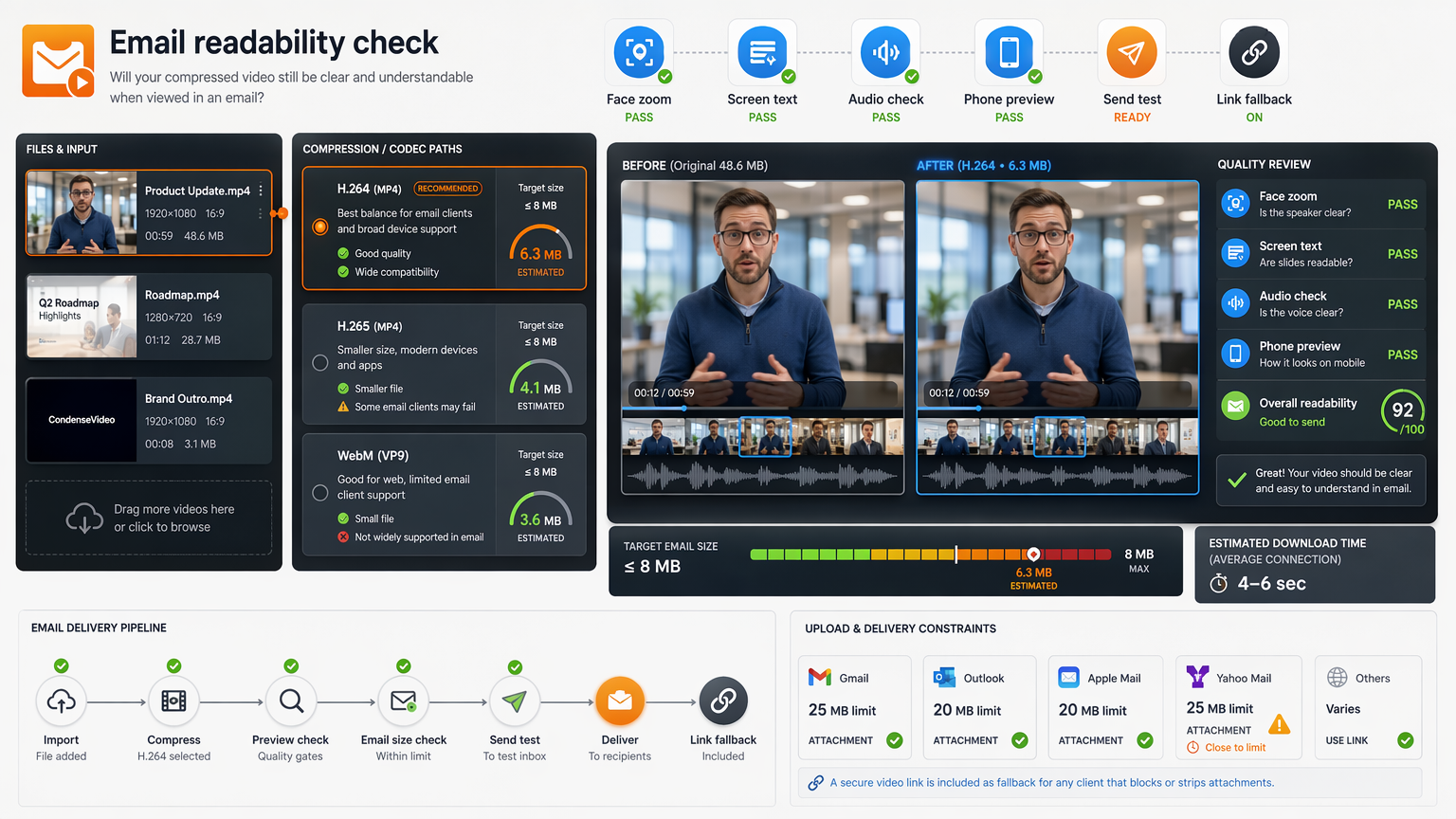
Before sending, check the compressed file at the points that determine whether the message lands. If there is text, read the smallest line at a realistic playback size. If there is a face, confirm it is still recognisable. If there is speech, listen for intelligibility, the most common email-compression failure is audio that turned to mush while the picture still looked fine.
Email recipients scan and skim. They will not sit through a muddy video hoping the key moment becomes clear; they will close it. So the acceptance test is whether the single most important second, the caption, the demo step, the spoken phrase, is legible and audible at the size and quality that will actually arrive. If that moment is clear, the send will work.
Play it back the way the recipient will, not on your editing monitor. A phone screen, a small embedded player, laptop speakers, these reveal problems a full-screen, headphones review hides. The goal is to see what they will see, and fix it before it lands in their inbox.
A quick ritual catches most problems: open the compressed file in a plain default player at a small window size, on laptop speakers, and watch the one moment that matters most. If the caption is readable and the voice is clear there, it will be clear for them. If you only ever review full-screen with headphones, you are approving a file your recipient will experience quite differently.
Know when a link is better than an attachment
There is a clear threshold past which attachment becomes the wrong choice. Large files, anything going to a client or a distribution list, content that might need to be updated after sending, and anything where you want to know it was watched, all of these are better served by a hosted link than by an attachment fighting against a size cap.
A link sidesteps the whole compression-for-email problem. The video lives at full quality on a host; the recipient streams or downloads it; it works on any device; and you can replace the file or revoke access later. You trade the convenience of an in-email file for reliability, control, and analytics, often a good trade.
The decision is not binary across your whole workflow; it is per send. A quick internal clip is a fine attachment. A deliverable to a customer is almost always a better link. The mistake is defaulting to attachment out of habit for files that would serve the recipient far better as a link.
A useful heuristic: if you hesitated over the size, if it is going outside your organisation, or if you might need to fix a typo in it tomorrow, use a link. Attachments are for small, final, internal clips; links are for everything where reliability, updateability, or tracking actually matter. Defaulting to a link for client-facing sends removes a whole class of "it bounced" and "I sent the wrong version" problems.
Section 8Send with margin and keep the original
When you do send an attachment, send it under the cap with real margin, not pressed against the limit. Margin absorbs the differences between your mail provider and theirs, the encoding inflation, and the quirks of corporate gateways. A file sent at 95 percent of the limit is one strict server away from bouncing; a file sent with room arrives.
Keep the original source until the recipient confirms the file opened and played correctly on their end. An attachment that looks fine in your sent folder can fail on their device, and you will only know when they tell you, or, worse, when they do not reply. Holding the source means you can re-export or switch to a link without starting over.
The closing check for an email send is plain: did it arrive, did it open, is the key moment clear, did it fit with room to spare? If yes, record the settings that worked for that provider and recipient type so the next send starts from a known-good baseline. Email compression rewards a small library of what-already-worked far more than heroic one-off efforts.
Keep a one-line note of each successful send: "client demo, Outlook recipient, H.264 MP4 at 18MB, captions readable." Next time the same situation comes up, you start from a setting you already proved instead of re-solving the whole problem, and you stop bouncing attachments to the people whose attention matters most.
Compression decision checklist
- Target below the advertised limit
- Use MP4 for broad playback
- Trim unnecessary seconds before crushing quality
- Preview the smallest important detail
- Send a hosted link when the target would ruin the file
Email compression is won or lost on whether the file opens for the recipient, not on how small it is. Aim below the cap with real margin for transport inflation, reach for H.264 in MP4 so it plays in any inbox, trim before you crush, and protect the one detail the recipient needs to perceive. When the target would ruin the message, send a hosted link instead of a damaged attachment. Keep the original until they confirm it played, and note what worked, because a small library of proven sends beats heroic one-off compression every time.